
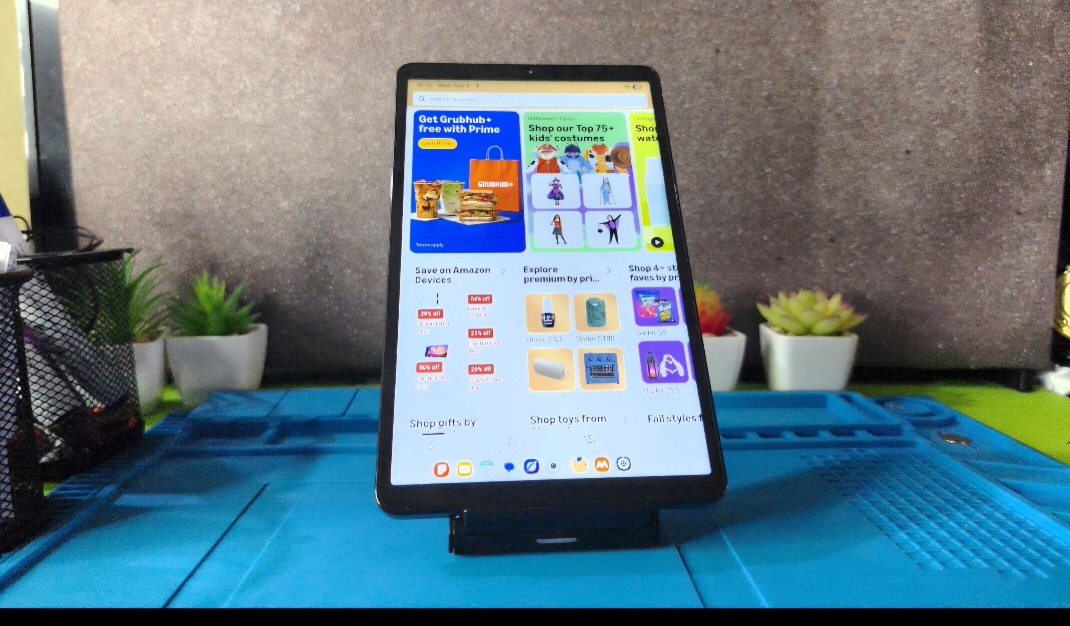
Hey there, Ricardo here and welcome to another Cool Tutorial just for you. And in this one guys, I have a very interesting Fix. I’ll be showing you how to get the Amazon App on your Samsung tablets.
If you go to the Google Play Store or the Galaxy App Store, you’ll notice that
you cannot find the Amazon app. Don’t ask me why but its missing for some reason.
You’ll see the Alibaba, You’ll see Prime Video, You’ll see Amazon seller,
Alexa, and some bunch of stuff, but you’ll not see the official Amazon app.
It’s not there. Even if you change the search term a bit, it’s not there.
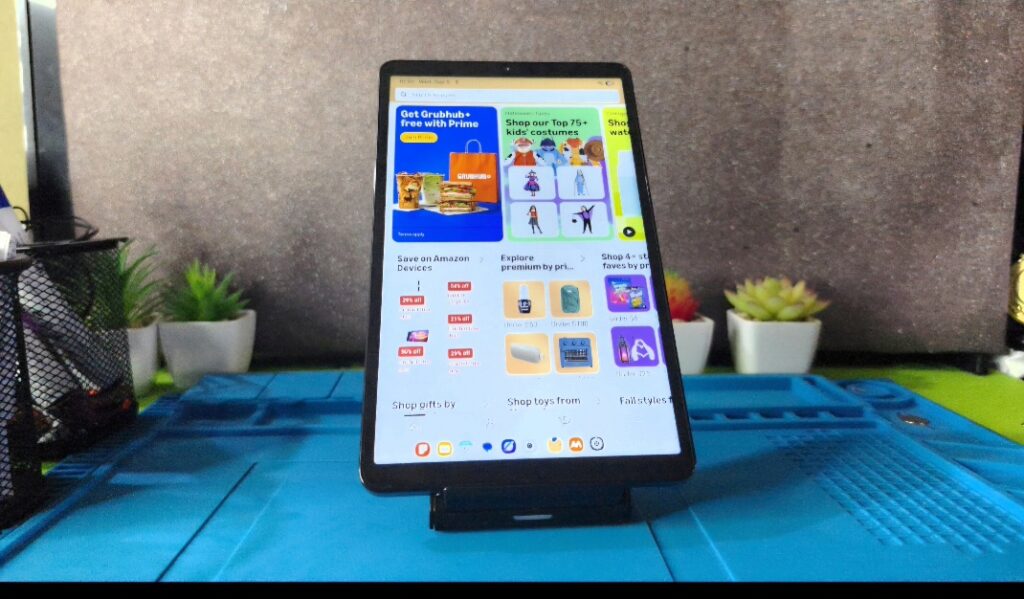
This is a common issue for those with the Galaxy Tab. Um, this one is a A11. It also affects a whole other bunch of Samsung tablets. It doesn’t matter which one it is.
How to Get Back The Amazon App?
This is how you’re going to get back the Amazon app. I’m going to have several solutions.
1.There is a easy solution that will only take 2-3 minutes.
2.The second and best solution will take a bit more time and is the perfect solution to the problem.
Video Tutorial:
My video tutorial goes into way more details and shows you what to do step by step and can save lots of time as you can follow along with me. You can watch it below or Continue reading.
Solution 1: Website App Solution
I’m going to start with the easiest one. So, let’s go. first thing you want to do, guys, is find Google Chrome App.
1. I recommend Chrome because that’s what I use.
2.Go to Chrome, which is Chrome browser from
Google. You’re going to launch Chrome.
3. From wherever you are, Go to the main Amazon webpage.
4.Tap the three dots upper right in Chrome. You’re going to scroll
all the way down.
5. You’re going to see a option that says: install and create shortcut. Tap on that.
6.Go ahead and hit install. It says installing, give it a little time. It’s going to do its thing. You can always exit.
All right.
7.Go to your Apps page and you will see that a Amazon App will Appear. It might take a little while to appear but wait.
When it appears it may look a little low resolution, the icon that is but don’t worry. When you launch this App you will find you now have basically the Amazon App again easy. Go ahead and sign in and you are good to go.
Solution 2: Install The Amazon APK
The other Alternative solution, which is optional is to install the Amazon App from a Apk file.
1.You’re going to go ahead go to Chrome and you’re going to Search for APK M I R O R.
2.On that website You’re going to search for Amazon APK or Amazon Shopping. Make sure you tap select the latest update to download.
3.Next after the Amazon APK in downloaded go ahead and install the APK file on your Samsung Tablet. (My video tutorial walk you through the entire process).
4. APK mirror also has their own proprietary installer. For some
reason, Amazon only comes with that installer. What you can do
sometimes is do do the download from your laptop and then transfer it over to your tablet using a flash drive.
5.If the file is a APK Mirror file then Go to the Play Store and you’re going to Search for and Install the APK Mirror Installer. That will install the App if its in their format.
6.Grant the relevant permissions and the App will Install and you will have the full and official Amazon App.
Congrats You did it!
That should be it and you should now have the Amazon App. The best part about this solution and Fix is that we have a easy solution (Solution 1) for less technical persons and solution 2 which is better is for those who know their way around the Samsung or Android file system and how to install third Party Apps.
I do hope you enjoy the Guide and see you in the Next exciting tutorial and Fix for Your Tech gadgets.
🙂 How well did I do? Take a moment to leave a comment.