
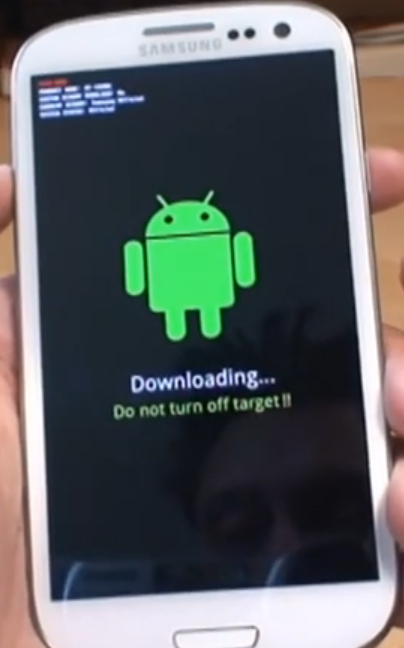
In today’s tutorial we intend to show you how to put any Samsung Galaxy or Android device into Android Download Mode. This mode is usually used when you Root your device or install a recovery console such as CWM recovery (ClockWorkMod Recovery) or any such tools in an attempt to install a custom Rom on your device.
What Android Devices Will I be able to put into Download Mode?
This will work with all standard Android devices and the Samsung Galaxy Line of phones such as: Galaxy S, Galaxy S2,GalaxyS3, GalaxyS4, Galaxy S5 and later. The galaxy Note series is the same as you might guess.
What is Android Download Mode and it’s importance?
Android download mode is a special a secondary system of your smart phone that allows custom files to be loaded, as you might guess this includes files for Rooting your Android, Custom recovery loaders and every ones favorite Android pass time of loading Custom ROMs.
Before you Proceed!
Make sure that you know what you are doing before proceeding and remember that you are responsible for any damage that might occur to your device by loading files in Download mode to your Android device.
[color-box] Do you have a Galaxy S8 or S8+? The method is slightly different on newer devices. Click here to see how to enter Download Mode on these newer devices right now.[/color-box]
How Place Your Android Device into Download Mode?
1. Power off your Android Phone.
2. Simultaneously hold down the Volume down + Power Button and the Physical Home button.
3.You will now be in download mode, its recommended that you let go of the button combo at first glance of the boot logo.
4. The following Warning should be displayed:
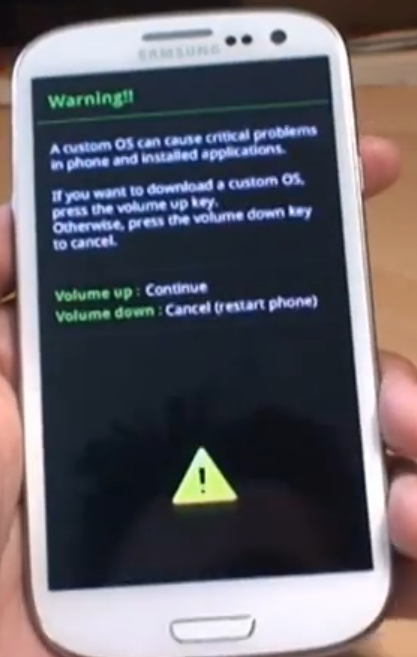
Warning !!
A Custom OS can cause Critical problems in phone and installed applications.
If you want to download a custom OS, press the volume up key. Otherwise,press the volume down key to cancel.
Volume up: Continue
Volume down: Cancel (restart phone)
5. Now press Volume up and presto chango you are in Download mode as seen above and the device is simply waiting for you to use a tool such as Odin3 to flash the Recovery console such as CWM or root your device.
That was much easier than you thought right? Well should you have any questions or difficulties getting your Samsung Galaxy into download mode we would be elated and more than willing to chip in and help you in solving your problems. So without hesitation go ahead and leave us a comment.


🙂 How well did I do? Take a moment to leave a comment.