
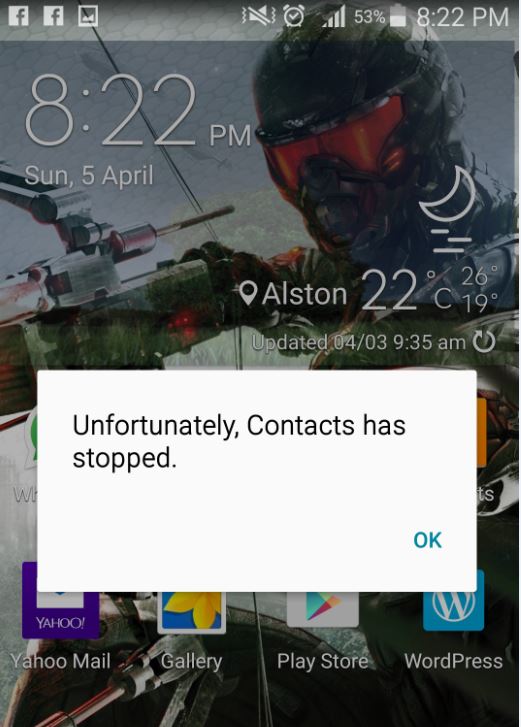
In this article we are going to look at an issue on Android where an App crashes and the message appears on screen: unfortunately App has stopped and this can happen with any App on your Android device with the name of the app appearing in the error were I have the word “App” such as:unfortunately ?? has stopped. The issue with this error is that at times it can affect apps that you really need to use such as the Play Store, contacts or any other of the many apps and ruin the experience with using your phone.
This issue happened to me with my Galaxy S5 after updating to Android Lollipop, contacts would crash randomly and it was really annoying to see the error message pop up on-screen and not knowing what to do to fix it. This issue can range from mild to sever as if this were to happen to a critical app then you could lose productivity time. My aim is to help you in fixing the: unfortunately app has stopped issue once and for all.
How can the unfortunately app has stopped show up?
The error can show up at any time especially after using your device for a while some of the error that might show include:
unfortunately contacts has stopped
unfortunately Play store has stopped
unfortunately camera has stopped
unfortunately messages has stopped
and any other App that might be running on your device.
How and why does this error occur?
My best guess based on what I have seen is that over time junk files can build up on your device or in cases where you do an update to the Android operating system then cached data gets corrupted and then this can cause apps to crash. You can consider factory resetting the device but using that method is too extreme and an easy fix is shown below.
What devices are Affected by this problem?
I have seen the issue allot in Android Phones but seeing that Tablets too run the Android operating system then it may also happen in your Tablets as well.
How to fix unfortunately App has stopped?
Fixing this issue can be done and it will only take you about a minute or two:
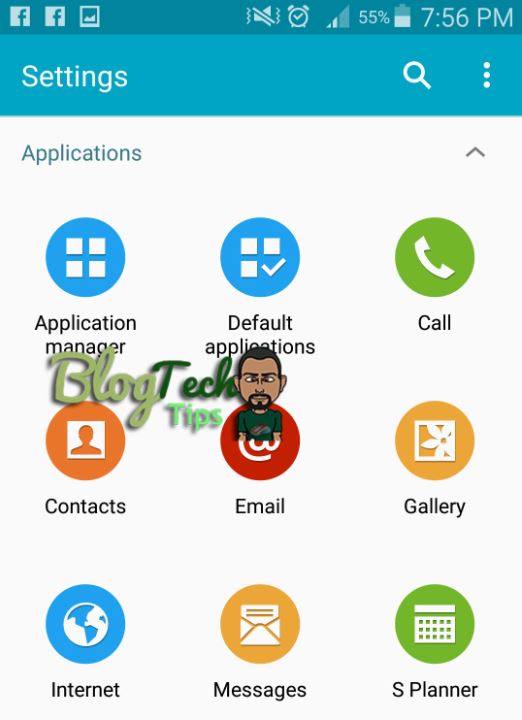
1. Go to your settings option and select it.
2. Now look for an option that says Application manager or something close.
3. Now swipe from your right until the screen scrolls over, do this until you reach: All.
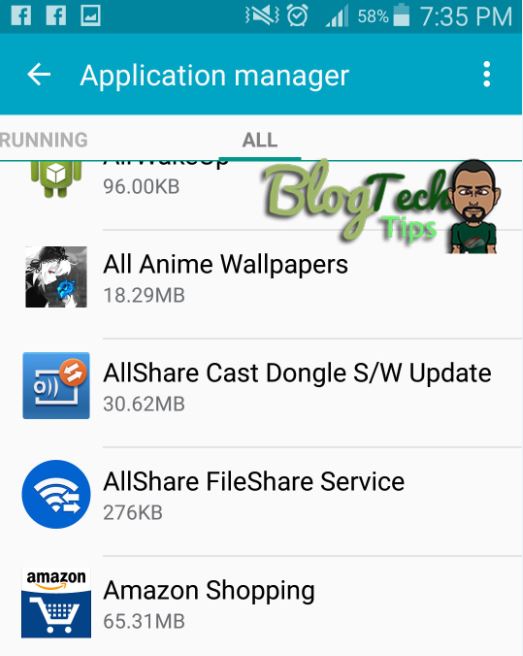
4. From here scroll until you find the App that’s crashing. So if it “contacts” look for that name in the list or if its “Play Store” simply look for it in the list. You will be able to find any app on your device here.
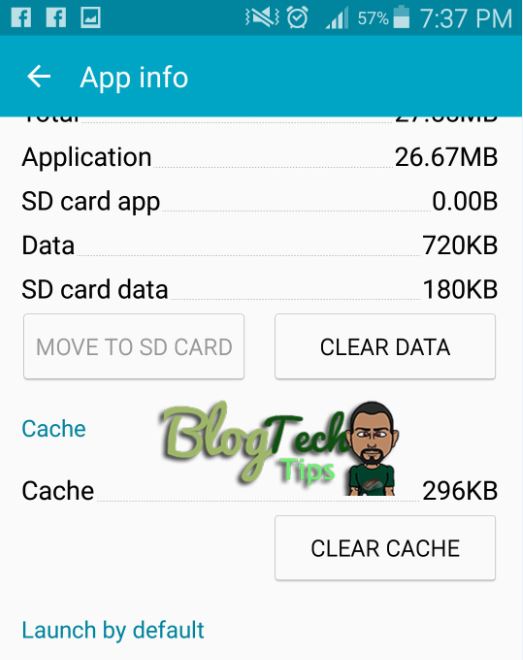
5. After finding your crashing App and selecting it simply look for the options clear cache and clear data, select both one after the other to clear the data and that should fix the issue of: unfortunately app has stopped appearing for your specific App that’s crashing. If the above did not work and you don’t want to reset your device then as a last resort try using this method here that might work for this situation.
Or
Most recently I have found that by entering Android System recovery and Wiping the cache partition instead of wiping the device is enough to also fix the issue and that option will leave your data intact, if the above fails and as a last resort if nothing else will fix it then you can try the option of wiping the device.
As always the comments are at your disposal and we look forward to hearing from you my friend as always never stop trying until that Gadget of yours is fixed.


🙂 How well did I do? Take a moment to leave a comment.