

Every now and again we all will need to enable developer options on Android weather or not we are developers, maybe its to find a settings that we need to trouble shoot a problem or to enable an option that we need for a specific reason.
How to enable developer options?
To enable developer options you will need to:
1. Go to settings and look for about device or About Phone, if it’s not there then look beneath the more option.
2. Look for Build Number and then tap it several times a message will appear that fades away that will say something like tap 2 more times to enable developer mode.
3. When you do it will say you are a developer or you are in developer mode, the option is now available.
4. To find the option go back to setting and look for: Developer options or look under the more menu.
That’s it you are now in the hidden developer settings.
What is developer Mode used for?
As the name suggest developer mode is for the mobile application developer and Game developers to test their developed Apps in the Android environment and fine tune their Apps, it provide all the tools a developer will need to create fully functioning Apps for Android. Coincidentally it also contains options that regular users may need to enable from time to time for varying reasons.

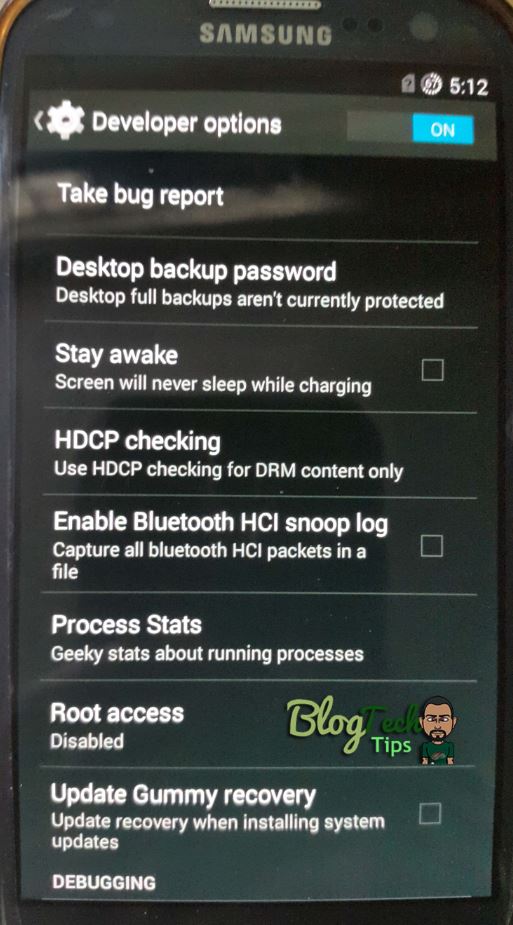
Options in the Developer Mode:
Take bug Report
Desktop backup password
Stay Awake
HDCP Checking
Enable Bluetooth HCI Snoop log
Process stats
Root Access
Update Recovery
USB Debugging
USB Debugging Notify
Power menu Bug Reports
Allow Mock locations
Select debug App
Wait for debugger
verify Apps over USB
Wireless Display certification
Show touches
Pointer location
Show surface updates
Show layout bounds
Force RTL Layout directions
Window Animation Scale
Transition Animation Scale
Animator duration scale
Simulated secondary displays
Force GPU Rendering
Show GPU View updates
Show hardware layers updates
Debug GPU Overdraw
Debug non-rectangular clip operatio..
Force 4x MSAA
Disable HW overlays
Strict mode usage
Profile GPU rendering
Enable openGL traces
Don’t keep activities
Select runtime
Background process limit
Show all ARNs.
How to disable developer Options?
In case you want to disable the developer options simply once you are in the option switch the toggle at the top of the screen from on which is green to Off and it will disappear from the menu option, the only way to see it again is to enable it once more as show above.
That’s it we have shown you as promised how to enable developer options and how to disable it after you are finished if needs be, so if you have any questions you may ask below in the comments.


🙂 How well did I do? Take a moment to leave a comment.