
If you are attempting to transfer a very large file to a USB flash drive, Memory Card or any other form of removable storage eventually you will come to realize that if you try to transfer a large enough file you will receive the flowing error: File too large for the destination file system and you will be unable to transfer the file-bummer right? Well relax as I will show you how to actually solve this issue so that it never happens again.
What cause the: File too large for the destination file system Error?
The error is caused by the file system, specifically the FAT32 file system is not allowing you to copy large files. The Maximum file size that FAT32 will allow you to transfer is up to 4 GB and no more, so if you have a file 4 GB+ when you attempt to transfer it to a file system or storage unit using this file system format it will give you the famous: File is too Large for the destination file system warning as seen below in the pic:

- File too large Windows Screen
The solution for File too Large Issue
To solve the issue and have your file transfer without a problem simply follow the instructions below:
1. Backup all current files on your removable storage drive e.g. on Flash drive, Memory etc.
2. Go to: My Computer and find your Drive and right-click and select Format, the following screen should pop up:
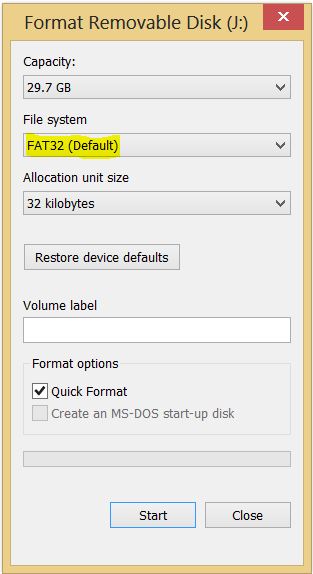
3. You will notice as highlighted above that the FAT32 file system is being used, change this from the drop down to:NTFS.

4. Once the NTFS file system is selected go ahead and click start and allow the drive to be formatted to the new file system, note that your files currently on the drive will be deleted thus the warning for you to back up your files earlier.
5. Now try to transfer the large file once more, large files 4 GB and above will now transfer without an issue as long as you have enough free space available. Plus now your drive is in a better file system than the outdated FAT32 format that these drives are set to by default.
In my book that was a short and sweet fix that I have used in situations where I needed to transfer a very large file and the storage device was not allowing me to do the transfer. So as always if you are not a meanie (lol) and this has helped you take one minute to leave a comment and trust me I will reply to every one, until the next Tech fix its Ricardo saying good-bye.


🙂 How well did I do? Take a moment to leave a comment.