
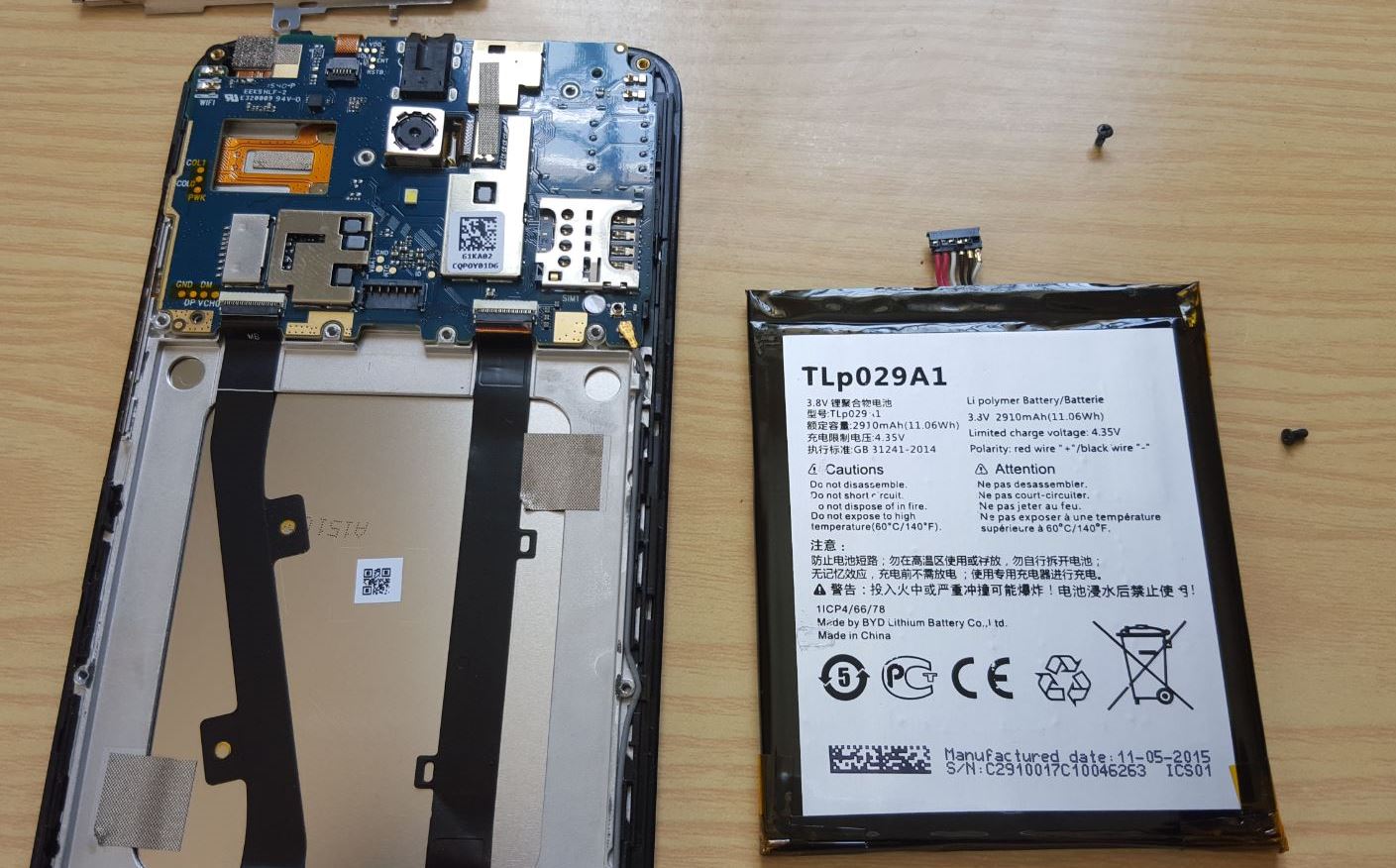
A friend of mine recently brought me her phone to look at. It was a Generic Android device which refused to power up and would not charge. It had a Non-removable battery and the problem suddenly happened to her phone without warning.Being up for the challenge as with all my fixes that I do here I decided to give it a go. So if you have a issue where your Android Won’t Power on or Charge this is the fix for you.
Description of the Issue in Detail
The problem in this case occurred with a Digicel DL1000. This may be a rebranded device and be called something else in another country.Despite that this fix should work with any phone with a Non-removable or build it battery. If you have a similar situation with a phone or tablet that not the one stated above this should still work for you so go ahead and try the principles written here.
The issues went as follows. The phone will not power up no matter how many time or how long you press the power button. When the charger is connected the phones LED indicator that indicates charging may come on but nothing will appear on-screen. You will not see anything displayed on the LCD to indicated charging such as a battery animation as you normally would see.
How to fix the Issue?
To fix this issue you will need to disassemble your phone. Be warned if your device is under warranty please take it back to the store. Also I will not be held responsible for damages to your device, this tutorial works but it requires that you be able to follow basic instructions and have a working knowledge of Electronics.
1.Remove the back of the phone. Remove your SIM card and SD card that is most likely installed.
2. In my case you will see a metal plating, it may seem like the battery but it’s not. Remove all the screws in the back of the device.If you need a reliable screwdriver set I recommend [easyazon_link asin=”B000MF754W” locale=”US” new_window=”default” nofollow=”default” tag=”blogtechtips.com-20″ add_to_cart=”default” cloaking=”default” localization=”yes” popups=”default”]this Maxtech 32-Piece Precision Bit Set[/easyazon_link] that I use in all my repairs.Next along the grooves start separating the phone at the seams. It should slide apart easily all around.
3. Unscrew the metal plate that shields the battery. To remove the battery carefully slide the black battery connector from the pins. They should slide right off.If you are unsure what to do the video below demonstrates everything in detail.
4. This is the important part, leave the battery disconnected for about 5 to 10 minutes. Go take a quick walk, when you are back simply reconnect the battery and you can try powering on. The phone should power up.
5. Finally reassemble the phone and that’s it your device is now fixed.
Video Demonstration:
The following video demonstration will show you what to do step by step. You can follow the tutorial and see exactly what I did step by step.
Extra Tips
As you go along its always a good idea to take a snap shot as you disassemble. This is in case you cant remember what goes where.Also be patent and take your time there is no need to rush.
Final Thoughts
I do hope you where able to fix the Android Won’t Power on or Charge issue with your device. If you have the Digicel DL1000 specifically then I know this will work for you. Please leave a comment below and share your experience. You can also do me a solid and share this on social media to help others who may have the same issue. The YouTube channel is also at your disposal as I do regular tech fixes and tips there that may help you. Until next time this is Ricardo saying Good bye.


🙂 How well did I do? Take a moment to leave a comment.