
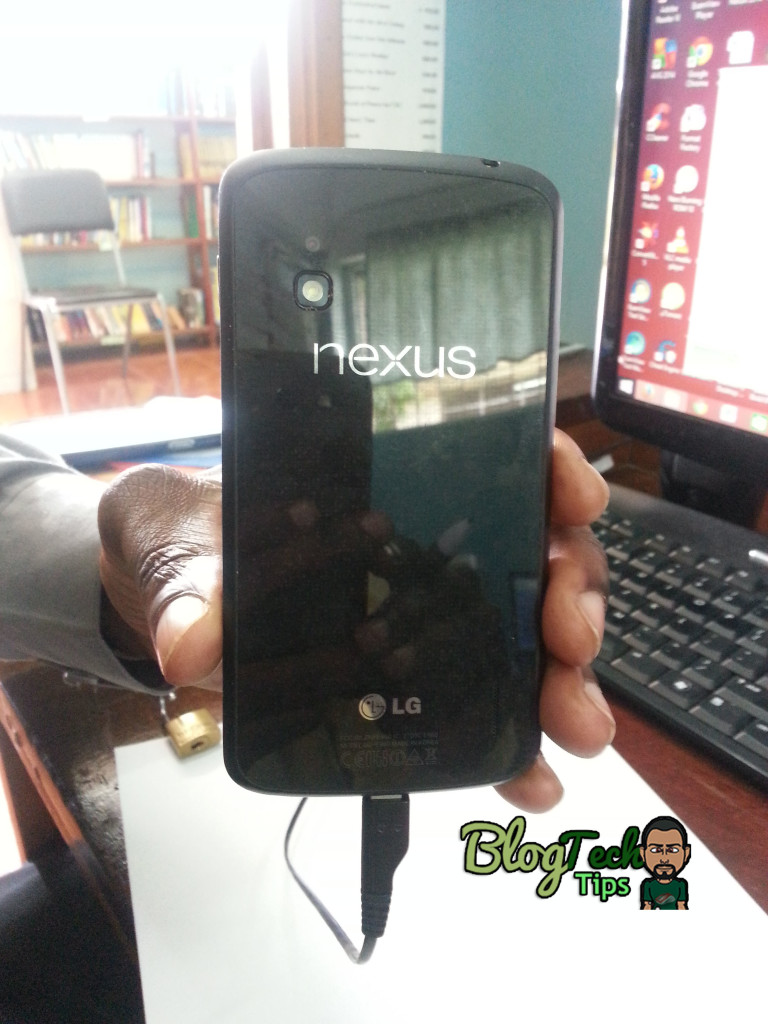
If you are having Nexus 4 red light issues where you decided to charge your phone only to find a Red light displayed on your device while its plugged in and charging then you are not alone and this is a issue that’s plaguing the Nexus 4 where your smartphone is showing the Red light of death. But do not worry we can have you fix this issue in a few minutes and then you can celebrate as your phone is returned to full functioning condition once again.
Description of the Problem
Your phone won’t power on and when you connect your charger you get a Blinking or flashing red light or the red light that may satay on at times and not blink. No matter what you do your phone will not power up or charge at all.
Devices that are affected by this issue
This issue affects the Nexus 4 or Google Nexus 4 and may also be present in other similar devices, In my case and the unit that will be used to demonstrate the fix is the Nexus LG-E960.
What Causes the Nexus 4 Red Light issue?
The red Light issue or red light of death is caused by a design issue or flaw which is easy to fix with our guide and video which will show you how to fix the issue in detail step by step and help you to get your Nexus 4 back to full functioning condition.
Watch the Video with step by step instructions:
How to Fix the Nexus 4 Red Light problem?
1. Power off your Nexus 4 and turn the device towards the end with the charge port.
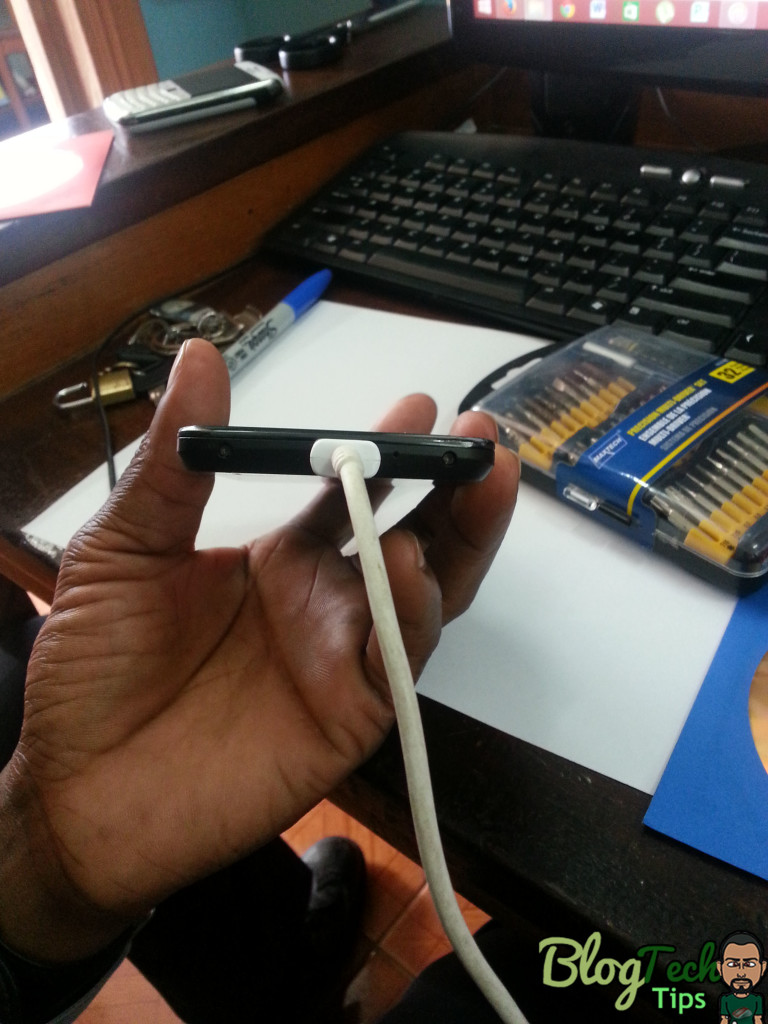

2. You should be seeing two (2) screws on either side of the unit, get a computable or matching screwdriver and remove both screws.
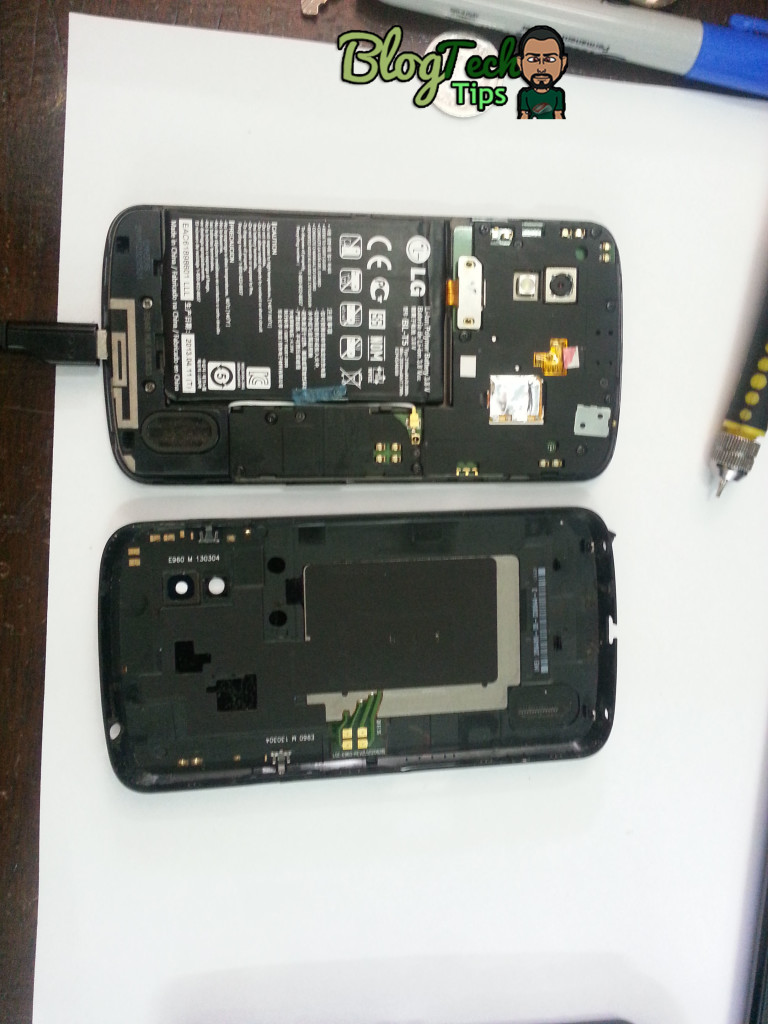
3. Next using some forceps or something blunt within the seams that hold the two phone halves together and gently start separating both edges along the length of both sides until the unit opens up, do not worry as once the screws are removed the unit is been held together by tape basically and it should open right up with evenly distributed force.
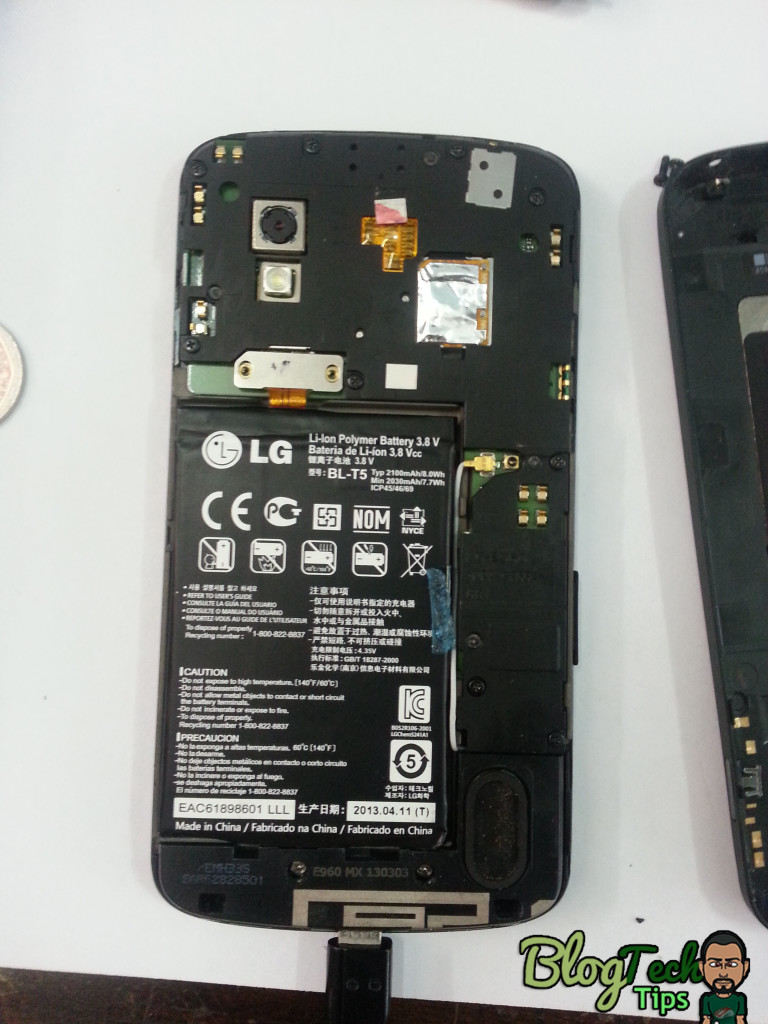
4. Once the device is open as seen in the pictures, go to the battery, you will notice its held in place by a tab with two screws or a battery Bridge which fixes it to the phones main circuit board.
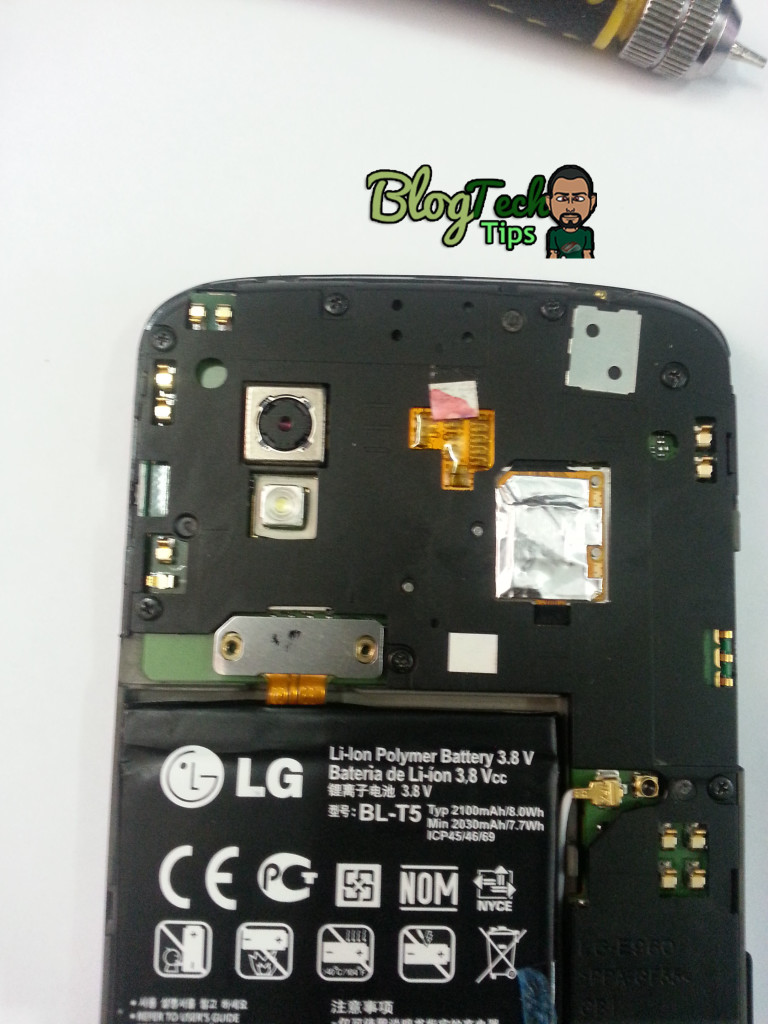
5. Remove both screws and remove the battery completely or you could simply flick the battery bridge off with your fingers and clip it back into place.
6. Once the battery is in and connected to the main circuit board again without replacing the screws on the bridge, attach the back of the phone once more and finally replace the outer screws beneath the phone on either side of the charge port.
7. Plug your phone back in and it should now show a charging icon with a battery and the Nexus 4 blinking red light should be gone. Allow the phone to charge for at least 15 minutes before attempting to power it up again.
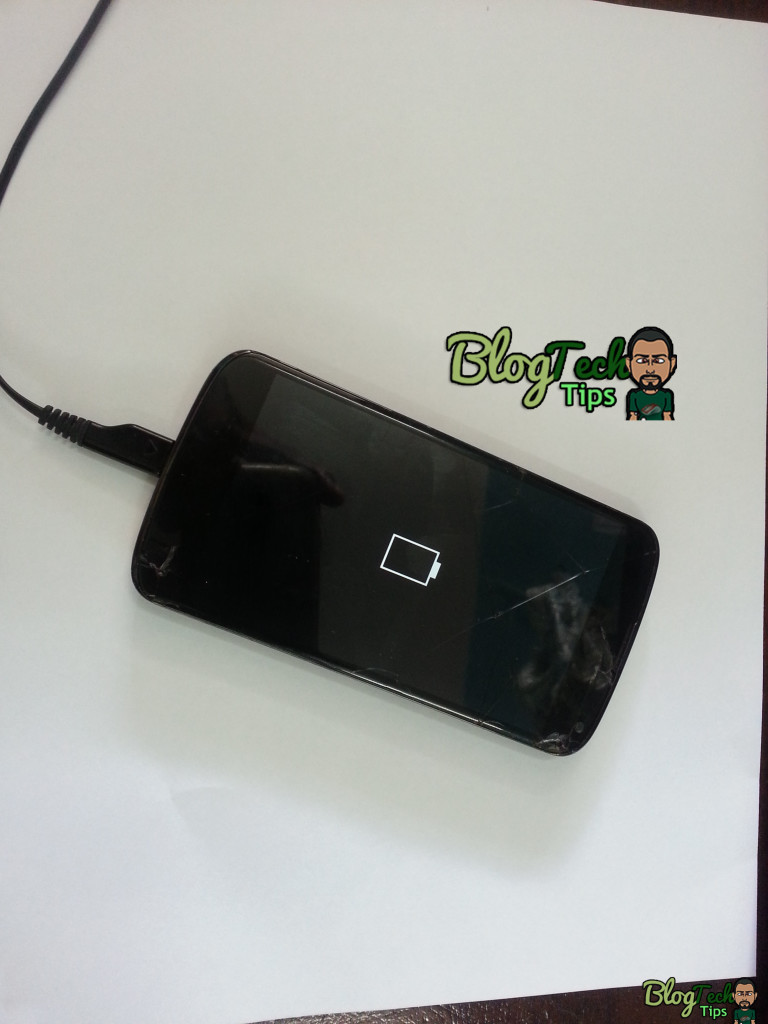
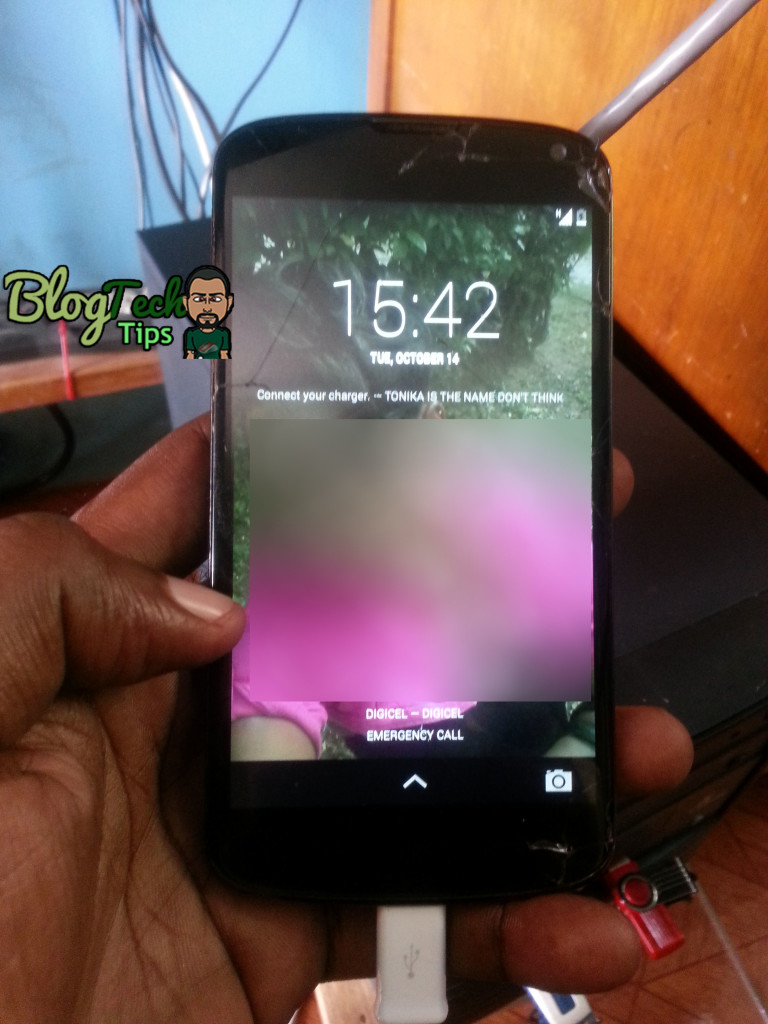
8. Power up the phone after the 15 minutes and you should have your Nexus 4 back to 100% working condition.
Why does this work?
Its seems the issue is with the point at which the Battery is secured to the phones circuit board with screws (Battery Bridge) and its too tight when the screws are left in place so by removing them the issue is solved as the connections are not too tight and power can flow freely to the phones Circuit board. The issue seems to take a while before it shows up in the Nexus 4 but it eventually happens to allot of these devices.
Trouble Shooting
If you have attempted the above process and you are unable to get rid of the Red light of Death then try the following:
1. I followed the procedure and it does not work:
Solution: It does work but sometimes it requires that you open the device again and removed the battery and put it back in several times before it finally solves the issue.
2. The Red Light is gone but the device will not power on.
Solution: The battery is most likely drained completely and as recommended it will take a while to build back up its charge so give it at least 15 minutes to charge before attempting to power up the Nexus 4.
3. The phone is not charging.
Solution: You may have a faulty charger so change chargers or switch to a USB cable that you can attach to a commuter and charge your device.
4. It powered up fine and I was using my device, now its back to the red Light issue.
Solution: Do not panic simply disassemble the phone once again and repeat the procedure above.
5. After Reassembly the Red light does not go away.
Solution: Did you put the screws that hold the battery bridge in place back in? if you did then that’s the problem, the fix only works when those screws are left out.
I hope you were able to fix your Nexus 4 red light issue and have your device working again, if this tutorial has helped you please leave a comment below so that we know that creating this article was worthwhile. If you have a question please also feel free to use the comment section to explain it as clearly as possible so that we can help,looking forward to hearing from you my friends.


🙂 How well did I do? Take a moment to leave a comment.