
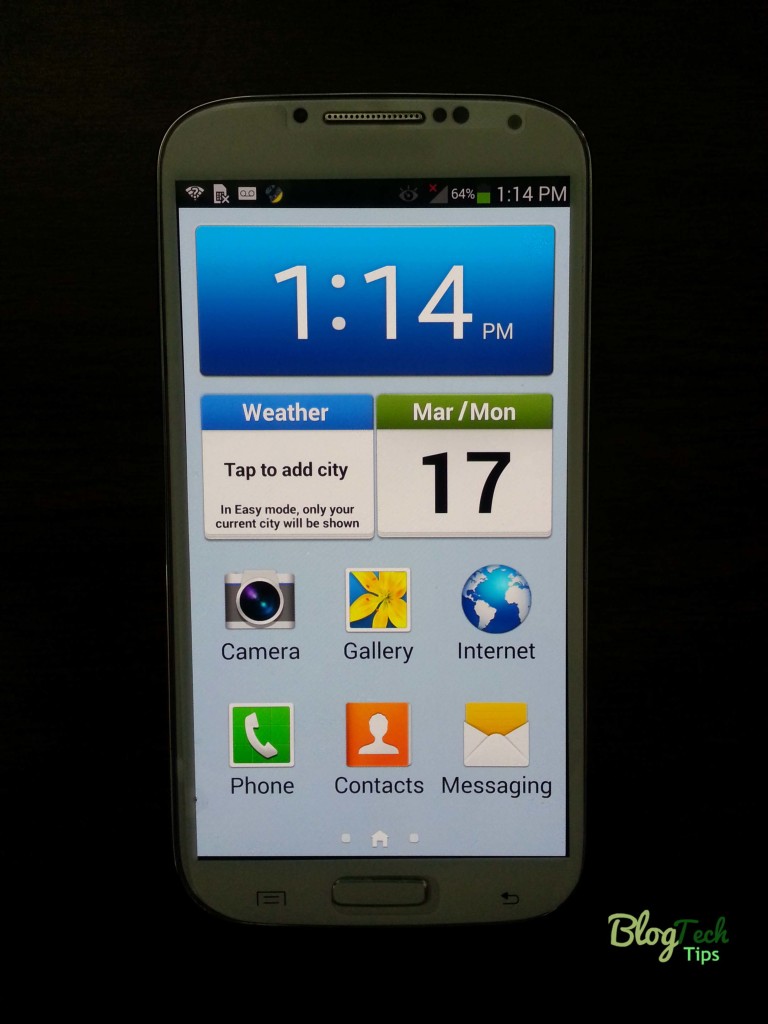
If it has not yet happened to you it might just hit you by surprise, what am I talking about? well it’s Samsung “Easy Mode” which can be quite a pain if you don’t know what it is and your phone get’s thrown into the mode by accident.
What is Samsung Easy Mode?
Samsung easy mode is Samsung’s answer for those who may be moving to Android for the first time or for the less tech savvy members of the family who simply want a simple phone interface with the most used features. It simply hides the barrage of Android settings and presents the most commonly used features (or those that Samsung considers to be most common) from the user.
For other it’s an annoyance as it makes one of the most powerful phones on the market look like a toy or a cheap knock-off and who buys a galaxy smartphone for basic features right?
How did my phone get into this mode?
For some Easy Mode is a life saver, but for those who love the normal Android interface, they might think there phone is broken if they did not knowingly enable this mode. The top reasons why your phone ended up in this mode include:
1. You chose this at first setup and you did not know that’s what it meant, now your Samsung Galaxy does not look like the regular ones.
2. Classic baby pressing random key and you got here by magic, how do they do it?
3. Pocket dial or worse, pocket setting change.
4. Fast setup of your device without reading.
5. Darn kids messing around again.
6. Have no idea?
Whatever the reason you are here now.
How to disable Easy Mode on Samsung Galaxy S4?
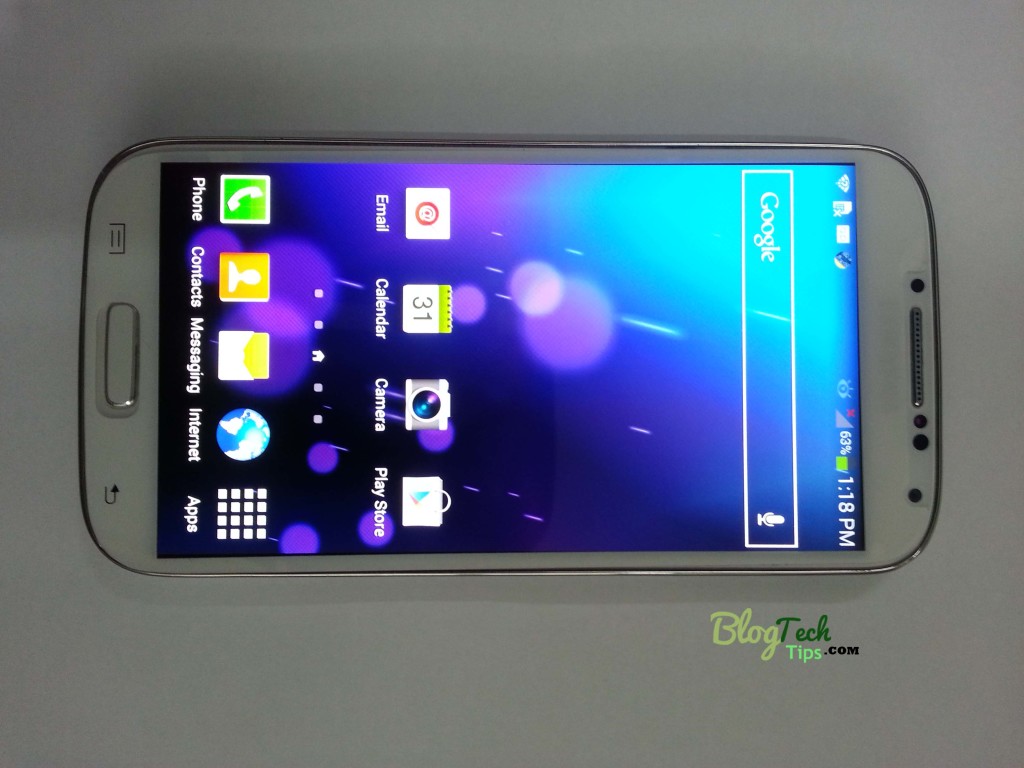
Note this should work for all Samsung devices:
1. Hit menu from the home screen and select easy settings.
2. Select More settings and from the new screen select the My device tab at the top of the screen which is the second tab from the left.
3. Look for: Home screen mode and select it.
4. From the new menu select standard mode and click on Apply and finally OK.
5. When you return to the home screen you will notice things are back to the way you like it.
How to Enable Easy Mode from Standard mode
(Don’t know why you would want to but just in case)
1. From the home screen hit the menu button and select settings.
2. Click on the My device tab which is the second tab.
3. Select Home screen mode.
4. From the new menu select Easy mode and as always click apply and ok.
5. That’s it you are back in Easy mode.
Let’s hope if you find yourself stuck in easy mode that this will help you find your way home and as always let us know your thoughts in the comments below.


🙂 How well did I do? Take a moment to leave a comment.