
Hey guys as always I am here with another exciting tutorial and today I would like to show you how to repair Windows 10 and to do this we will be using the Automatic repair tool that’s built into windows to help those that are having issues with their computer to regain access or the full functionality of their device.
In what situations will this fix help me?
This is ideal for situations where you are unable to boot up windows 10 due to some form of error, corrupted files, faulty installed drivers or maybe you actually are able to login but a serious or critical error is affecting Windows 10 functionality.
To do this tutorial I will be dividing the fix into two parts for those users who have access to their desktop and can login and for those who cannot boot up Windows 10 at all,so skip to the appropriate section that applies to you below that are underlined and marked A and B respectively.
How to Repair Windows 10?
A. From Within Windows (Desktop) :
1. From your desktop go to settings, you can find it easily by clicking start and from the start menu look for settings or cick on the notifications icon beside the time lower right and select all settings at the bottom of the screen.
2. Next select update and recovery. On the next screen select: Recovery from the left menu:
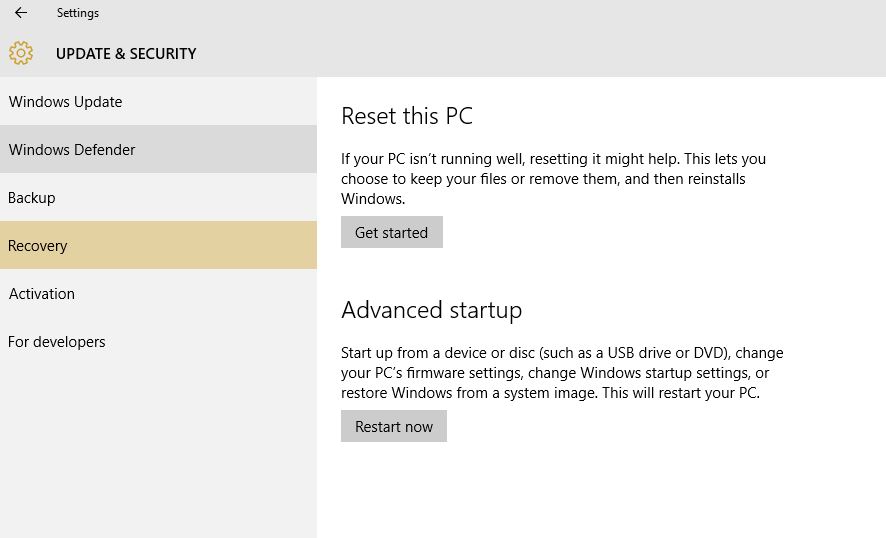
3.Now go to: Advanced startup and select restart now. Your PC will restart after clicking the option.
4. You will be presented with a screen that will give you several options that includes: Continue, Troubleshoot and Turn off your PC. Go ahead and choose troubleshoot and from here you will get a few more options so go to: Advanced options.
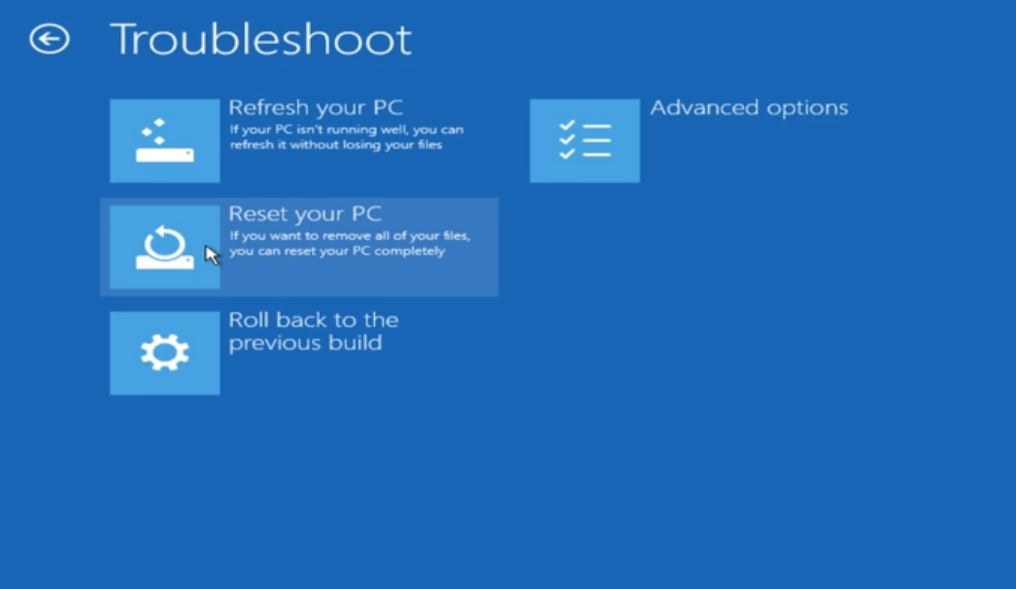
5. Under Advanced options you will find the options you need the most important of which is: System Restore and Startup repair.Since we have problems with windows starting up we will choose startup repair.
6. The windows logo will show up and a loading icon will run with the words Preparing Automatic repair. You will have to choose the affected account to continue so choose the account with the issue which should be the one with your user name and enter the password. (Others users might see target operating system before they are asked to choose an account to login to for repair so select Windows 10 its the same thing so select the option given ).
7. Windows will run a full diagnostic and repair any errors found. When finished it will give you the option to restart and you can verify if the issue is fixed, if not and all else fails you can re-run the Automatic repair and at step 4 or 5 above choose to reset your PC or do a system restore and see if that will help your situation. I advise in such a case you try a system restore first and then reset your PC as a final resort.
B. Perform startup Repair on Boot or When you cannot access your desktop or login
Here is how to repair Windows 10 from boot for those who cannot login or startup their system for some reason. This can potentially fix any problem that’s affecting windows from starting.
What you will need?
For this to work you will need the Windows 10 install disc or media that can be a DVD or USB flash drive with Windows 10 on it.
1. Insert the DVD or Bootable USB drive with Windows 10 into your computer and while its booting either hit the F key indicated by your Bios to bring up boot options, this varies from computer to computer or go into the BIOS/UEFi and change the boot order. When the menu comes up if you are using the Function Keys (F) select the bootable device you have inserted.
2. When asked to hit any key to boot from CD, DVD or media simply hit any key. A menu will come up with Language to install, time and country format simply hit next.
3. Now pay close attention in the middle of the screen it will see: install now-ignore that option and look to the lower left of the screen and select: Repair your computer:

4. From here follow the instructions from step 4 above with the picture in blue that Says troubleshoot at the top.
I hope your were able to successfully repair Windows 10 and as always please leave a comment below and share this article it would be greatly appreciated my friend.


🙂 How well did I do? Take a moment to leave a comment.