
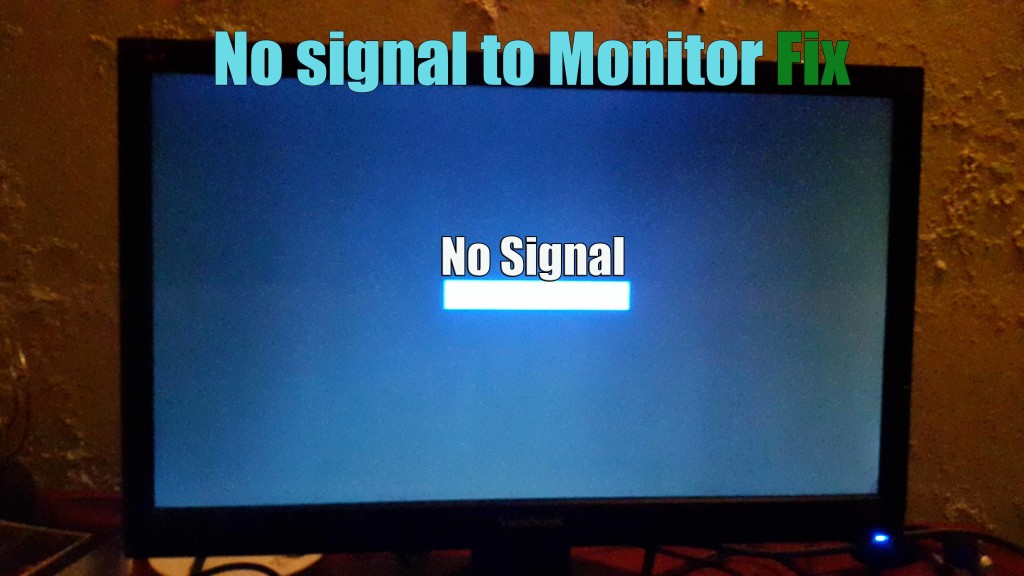
I am sure this situation sounds familiar to you, you go to your PC and hit the power button in anticipation of doing some work or watching a movie and the PC lights up as it usually does indicating its powering up but on-screen you see the dreaded message: No signal. This is one of the more annoying situations that can happen to a PC as usually there is no indication as what could be wrong with your device and the its simply stays like that no matter how long you wait. Today I would like to look at the fix for the no signal to monitor issue that affects so many computers.
Full Description of the Issue
The issue can manifest itself with several variations but in most cases the symptoms include the computer indicates that it’s powered up as the lights show but nothing is on the monitor. You may also hear a cycling beep that keeps repeating in some cases. The problem also persist whether you power the PC on and off.
How fix the no signal to monitor Issue?
To fix this issues follow the steps below and I highly recommend you watch the video above that demonstrates and do remember that this issue can be caused by many issues, the steps below start from the most likely and easiest solutions and works its way up from there so do try them all in the order given:
1. The first thing you can try to fix this issue is to unplug the PC by removing the power cord from the power supply, next hold down the power button for about 60 seconds or a minute while the computer is plugged out of the wall. In most cases this will fix most of those with this issue,also try it more than once and try holding power for longer if it fails the first time, if it still does not work read on.
2. Another thing to try is to reset the CMOS by finding the CMOS battery and removing the battery completely for a few minutes and then putting it back in. The faster way is to actually to use the reset jumpers that are found close to the battery itself, do this by moving the jumper from the first two pins of three to the last two which will reset the CMOS and fix the no signal on monitor problem you are having.
3. Another possible solution is to check the RAM you have installed if you have a single-stick remove it and clean it along with the RAM slot and try booting again sometimes dust can prevent a computer from booting and cause the no signal on the monitor problem. If you have two sticks of RAM do the same thing and try booting with one stick of RAM at a time. If you find a faulty stick of RAM that’s causing the issue then replace it. If you have one RAM stick you can try using a spear stick to test if it’s at fault.
4. Check your cables that run from the PC to the monitor it may be a case where you have a bad cable or the cable has become faulty.
5. Check your power cable or replace it if necessary and power supply if you have a spear as either of them might be at fault.
6. The Video card can also be an issue try removing it and using the motherboards on-board VGA or other port to see if it’s the Video card, if the on-board video works it’s definitely the video card and you will need to change it. It could also be the reverse if you don’t have a video card in your computer where the on-board video port has gone bad and you will need to get a video adapter or video card and place it in the PCIE slot and use that to support the video.
7. If all else fails you may have an old or faulty motherboard and you should change it.
Update: Additional Tips and Solutions
September 30,2018
You can never be too experienced when it comes to these issues, I found this out just recently with a personal computer. So these additional tips are for those who tried all the above and still nothing. A computer which I built three (3) years ago started to show no signal after a flawless three years of use without a single issue. I threw every trick I knew at it only to find that nothing would work no matter how hard I tried.In the past I fixed this issue easily every time within five (5) minutes tops, but this time things where different.
Here are some of the additional things I tried and that you can try too with the results I got:
1.I removed the Video Card and started to use onboard Video. Same result with no signal.
2.Removed Video card, RAM,CMOS battery and all other connected components that were added to the motherboard but was not necessary for the computer to boot.Still the computer would not boot.Also the Monitor and cables to everything was all good.
3.Finally after hours of troubleshooting I disconnected the main hard drive along with all the other hard drives and everything thing else was connected again including RAM, Video card and so on. I then turned everything off and went to bed after concluding that I had a Motherboard issue and that I need a new one or a new computer all together.
The next day I tried to power on the PC. It showed no signal and took a little time but it did power on with all the drives disconnected (Don’t ask me why). The POST screen indicated that settings were reset to their default value and then the PC asked to select proper boot device.When the Hard drive was connected the PC would not boot and I had to try a few times but what did work was to connect the hard drive which was a SSD while the PC was on and then rebooted and finally after 24 hours it came back and booted into Windows as if nothing had ever happened. I do hope at least one person will find even a clue in my story that may help them in fixing their issue as it relates to No signal on their PC.
Conclusion: Either disconnecting all the drives and leaving the computer to sit over night seemed to have done the trick. So rule nothing out and try all I did above to see if that somehow worked for you in some way.
Final Pointers
Note that the No signal to monitor issue can really cut productivity as you try to fix it and the smart thing to do is to actually take the troubleshooting one step at a time and be thorough if you need help leave a comment below with your details and I will be sure to get back to you my friend.


🙂 How well did I do? Take a moment to leave a comment.