
My aim today will be to show you how to perform a Asus Memo Pad hard reset or factory reset in cases where you are unable to get into Android recovery by using a MicroSD card which will work for those who cannot fix their devices with the button combination and I will also include the special button combination to use while you tablet is staring up so that you can through system recovery of Android reset your device or wipe it to restore it to full functionality.
Please note that this will work on any Tablet that is in the Asus Memo pad line of tablets. This method can be used to fix different problems such as your device operating very slow, constantly crashing apps, too many pattern attempts when you enter your password or pattern wrong too many times or to simply erase your device to get it back to a state as when you first bought it or solve issues where you are stuck on the boot logo.
Please note before you proceed that this method will erase all the information on your tablets internal memory so backup your data if you can. Please follow the instructions below to proceed:
Asus Memo Pad Hard Reset using MicroSD Card
In some cases it’s not possible to reset the Asus Memo pad using the button combination method shown below that most articles will recomend as some manufacturers have removed the Android Recovery console from some Asus Memo Pad Tablets and in such a case no button combination will work in resetting it, if you are one such person do not worry as we have a solution for your situation to wipe your Tablet and fix any issues that you are having with your Asus MeMO Pad ME172 or other version, simply follow the instructions below using the Asus MeMO Pad ClearData tool:
1. You will need a Micro SD Card to wipe your device, first download and extract the following Asus Memo Pad ClearData file.
2. Connect your MicroSD card to your computer and from my computer right-click and Select Format, From the options available set the file system type to Fat32 and format, this step is very important or this method will not work!.
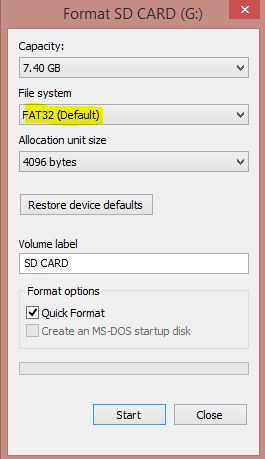
3. Once its formatted correctly take the files that you extracted from the file you downloaded in step 1 and place them at the root of the MicroSD card. When finished remove the MicroSD card from your computer and power down your Asus Memo Pad and make sure it has at least 50% charge and insert the SD card into the tablet.

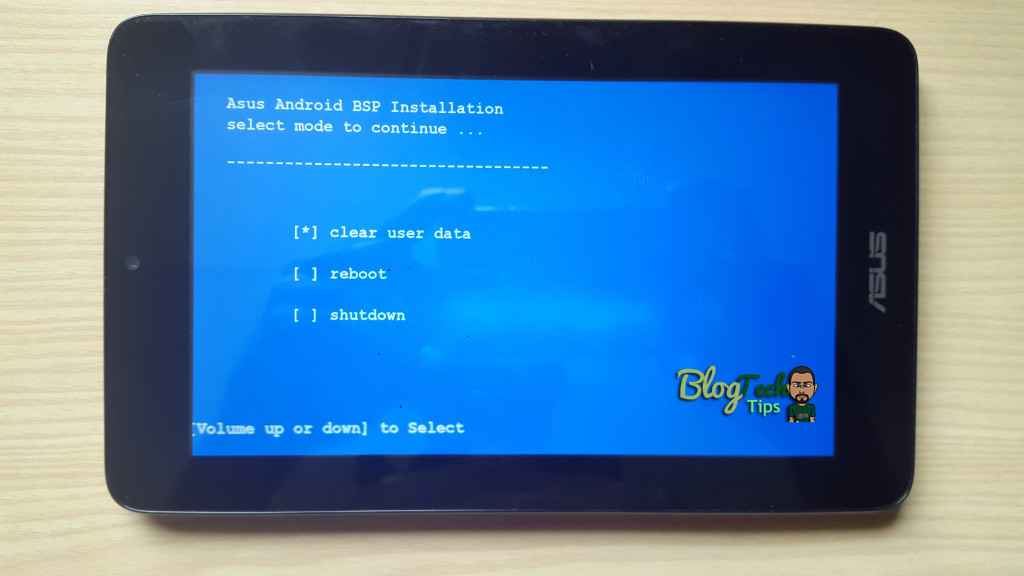
4. Now with the SD card inserted press and hold the power button and do not let go until you see the following screen:
5. The options on-screen will include when the Tablet has booted from the MicroSD card :
Asus Android BSP Installation select mode to continue…
Clear user data
reboot
Shutdown
From here select: Clear User data by using the volume up or down key to navigate and the power button to select.
6. When everything is complete the tablet will prompt you to remove the MicroSD card , go ahead and remove the SD card and the tablet will reboot and if its was locked or was showing too many pattern attempts that will now be gone.
Related Articles
Asus Memo Pad Red Battery Issue Fix
How to Put your Tablet in Safe Mode
Asus Memo Pad hard reset using button Combination
If the above did not work this is the method that works for other devices, again remember that this will erase your data that stored on the device, although it may be your only option:
1. What you want to do is make sure your tablet is charged and power down the tablet.
2. Hold the volume up rocker and power button (If this fails try using Volume down instead).
3. You will get the following three (3) Boot Mode options on-screen:
Recovery Mode
FastBoot Mode
Normal Boot
Select: Recovery mode by using the volume up to move through the menus and use volume down or power to select.
4. You will see the green Android lying on its back from here press the power button once and a menu will appear.

5.You are now in Android system recovery and the options will include:
Reboot system now
Wipe data/Factory Reset
Wipe cache Partition
Backup user data
Restore user data
Use the volume down button to navigate and select Wipe/Factory reset by pressing volume up to select and on the next screen use volume down to highlight the option yes–delete all user data, to confirm the option use volume up key.
6. Allow the process the complete totally. When complete select reboot system now and that should complete the Asus Memo Pad Hard Reset.
I hope you enjoyed the tutorial and it was able to help, do check out our other articles and leave a comment below it would be greatly appreciated.


🙂 How well did I do? Take a moment to leave a comment.